Vixen | Producer of optics from astronomical telescopes and binoculars
Vixen Telescope SX2WL-SD81SII


loading
Suggested retail price: Contact local dealer
- JAN
- 4955295250226
The set includes an SD81S II optical tube, an SX2WL equatorial mount for easy smartphone operation, and an SXG-HAL130 tripod.
This set includes the high-performance SD81SII optical tube, featuring an 81 mm aperture and superior optical performance thanks to its SD glass lens. It delivers exceptional results not only for visual observation but also for astrophotography. Paired with the SX2WL equatorial mount, you can enjoy automatic Go-To slewing to celestial objects, all easily controlled from your smartphone.
Vixen Telescope SX2WL-SD81SII Description
-
SD81SII Optical Tube Assembly
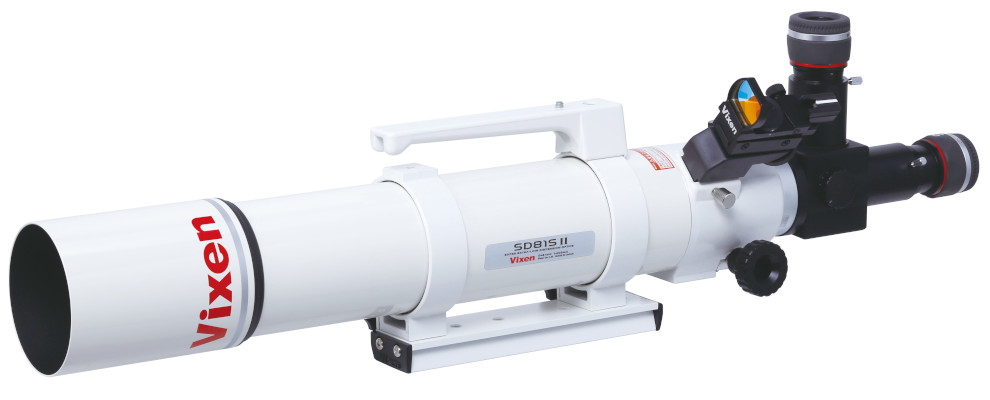
This high-performance photo-visual optical tube features an SD (Super ED) glass lens that effectively reduces chromatic aberration at an exceptionally high level, delivering clear, sharp star images. With a focal ratio of f/7.7 and a well-balanced focal length of 625 mm for its 81 mm effective aperture, it is ideal for a wide range of applications, from planetary observation to deep-sky imaging of nebulae and star clusters.
It comes equipped with a flip-mirror diagonal that lets you change the light path via a simple dial. This is highly convenient, enabling you to instantly switch between two eyepieces of different magnifications or toggle between visual observation and photography when a camera is attached to the straight-through back.
In addition, it includes a Vixen-standard dovetail attachment plate and a metal carrying handle, making it quick and easy to attach or detach the OTA from the mount and to transport it. This combination delivers excellent performance across a wide variety of celestial observing situations.
-
SX2WL Equatorial Mount: Automatic Go-To Telescope Control from your Smartphone
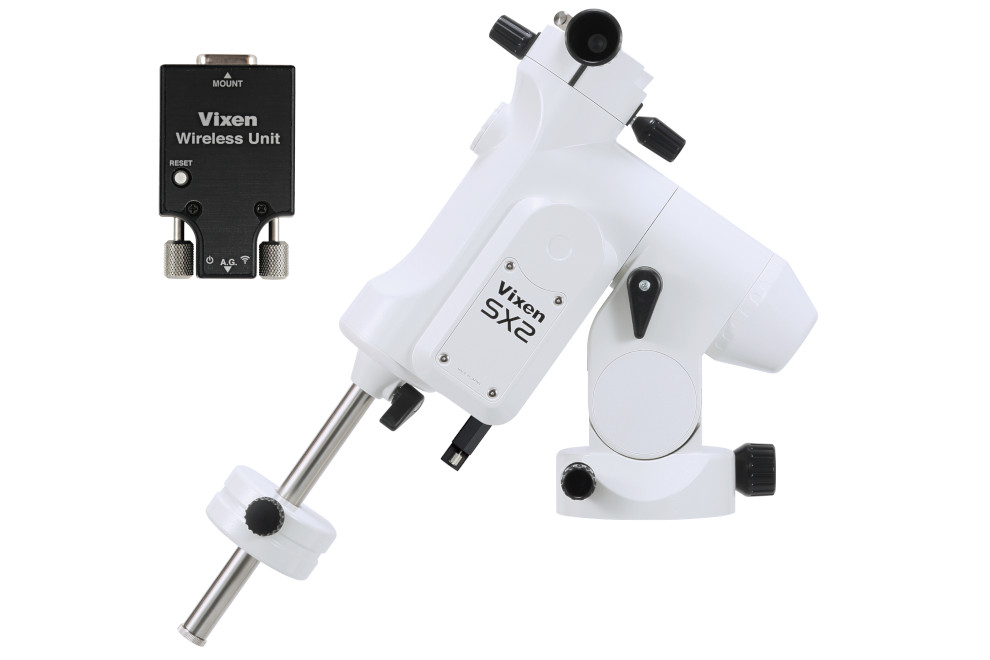
While retaining the excellent usability of the SX-series equatorial mounts, this model has been revamped with the same micro-step pulse motors used in the SXD2 series. By increasing the number of bearings from one to five, Vixen has achieved even greater operational stability. You can enjoy automatic Go-To slewing to celestial objects with simple control from your smartphone.
-
Wireless Unit Included! Cable-Free, Comfortable Celestial Navigation
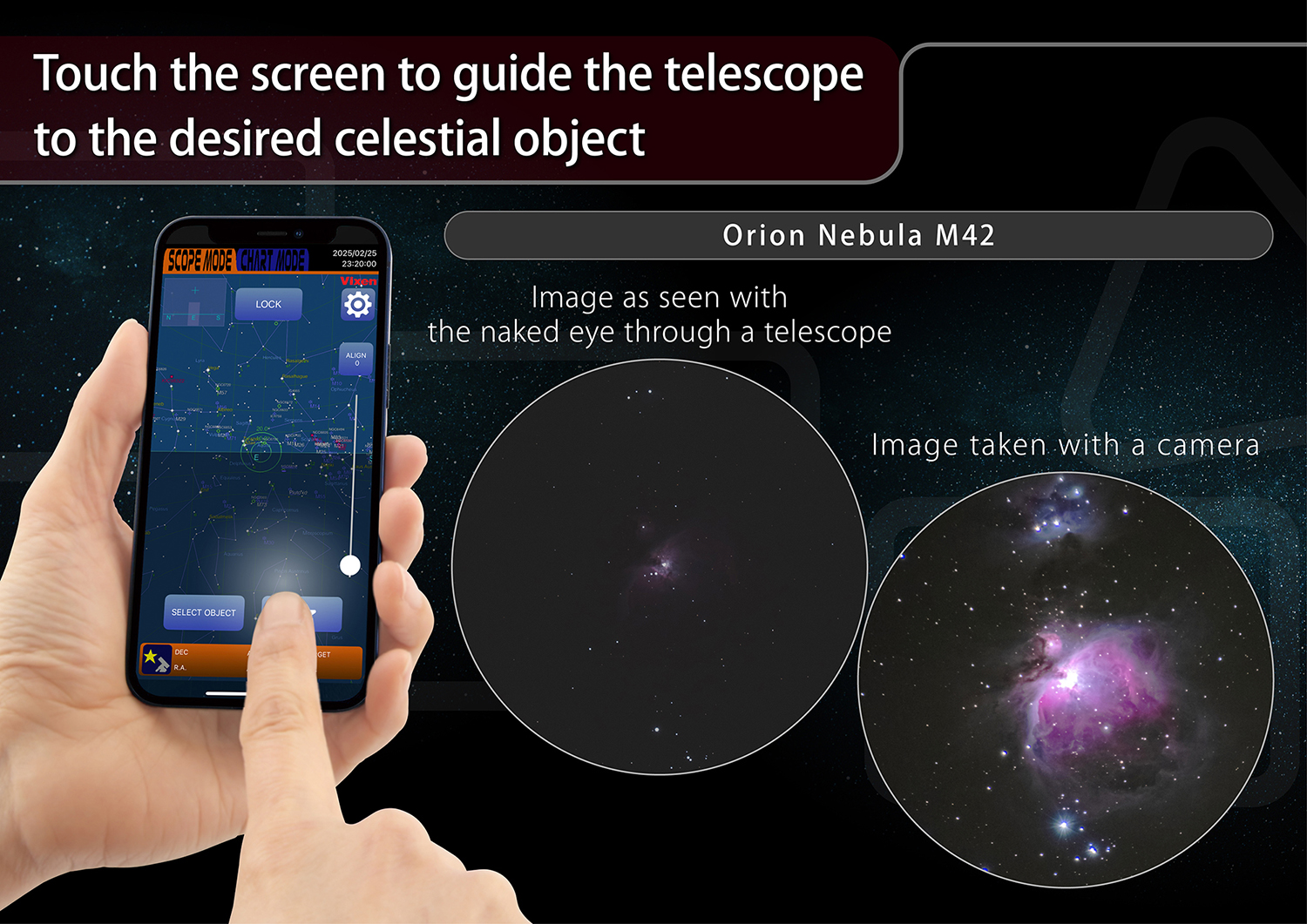
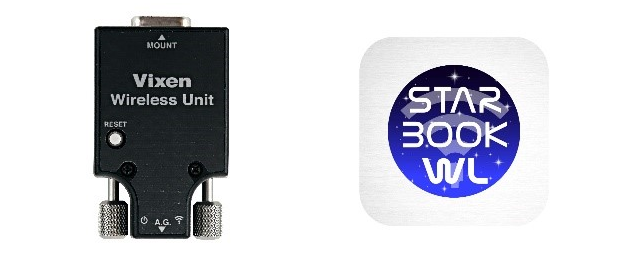
The “Wireless Unit” is included as standard, allowing you to control your equatorial mount with your smartphone. By installing a free dedicated smartphone app “STAR BOOK Wireless” on your device, you can use it as a controller.
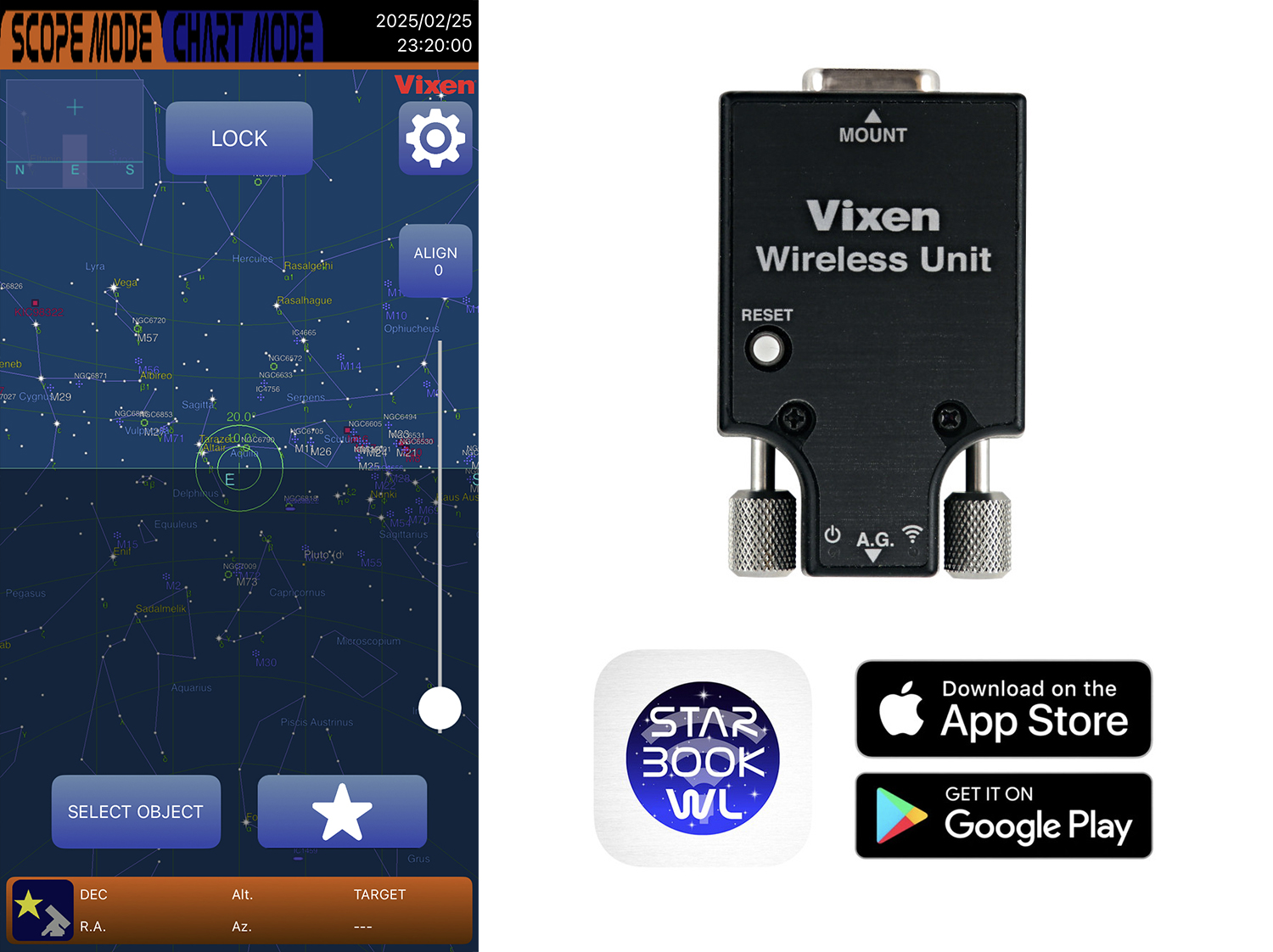
The "STAR BOOK Wireless" smartphone app inherits the highly acclaimed interface of the STAR BOOK TEN controller, renowned for its ease of use. Simply view the star chart displayed on your screen, tap the celestial object you want to observe, and the mount will automatically slew to it and begin tracking. Following the intuitive display design of the STAR BOOK TEN, the app is easy for anyone to use without difficulty.
STAR BOOK Wireless
Wireless Unit
Product page
Notice Regarding Wi-Fi Connection for Wireless Unit Users -
SXG-HAL130 Large Aluminum Telescopic Tripod

This extendable tripod features adjustable legs from approximately 80 cm to 130 cm, allowing you to set the height to suit your setup and preferences. Its hexagonal aluminum legs offer excellent load capacity and vibration damping, providing stable support for astronomical observations. Setup is tool-free and can be completed in a single step, making it ideal for mobile observations with a car.
Specifications
Optical Tube Part
-
Objective Lens (Primary Mirror) / Effective Aperture81mm SD Apochromat Multi-Coated
-
Focal Length (Focal Ratio F)625mm(F7.7)
-
Resolution・Limiting Magnitude1.43 arc sec., 11.3 mag.134x unaided eye
-
Size・WeightLength 585mm, outer diameter 90mm, 3.6kg (Main body 2.3kg)
-
Finder ScopeXY Red Dot Finder II (one-power aiming device)
Eyepiece Part
-
Focusing SystemRack and Pinion
-
Threads / Visual BackScrew-in / 60mm, 42mm T-ring screwPush-fit: 50.8mm, 31.7mm (with flip mirror diagonal)
-
Eyepiece (31.7mm barrel)SLV20mm (31x, 97min. actual field of view)SLV5mm (125x, 24min. actual field of view)
Tripod
-
Material・FormLarge hexagonal aluminum two-stage extension legs (one-touch type)
-
Size・WeightLength 807⇔1,299mm Height (ground clearance) 730⇔1,156mmSetting radius 460⇔706mm 5.5kg
Others
-
Main AccessoriesParts case, counterweight 1.9kg x 1
-
Solar ObservationUsed with a Sun Projection Screen Set B (sold separately) (for short-term observation)
-
Dimensions WxDxH
-
Weight17.3kg (excluding eyepiece)
Set Contents
- SD81SII OTA
- SX2 Equatorial Mount WL
- SXG-HAL130 Tripod
- Eyepiece SLV 20mm
- Eyepiece SLV 5mm
Accessories
- Counterweight 1kg x 1
- Flip Mirror Diagonal
- XY Red Dot Finder II
- Parts Case
Notice Regarding Wi-Fi Connection for Wireless Unit Users
Thank you for using the Vixen Wireless Unit for equatorial mounts.
If you are experiencing unstable or dropped Wi-Fi connections between the Wireless Unit and the dedicated "STAR BOOK Wireless" app, please try the following solutions.
Even if the Wi-Fi connection becomes unstable or is lost, the equatorial mount will continue tracking as long as the Wireless Unit is not turned off.
When the Wi-Fi is reconnected, the app will retrieve the data stored in the Wireless Unit, and the star chart on the app screen will be automatically updated to match the mount's current orientation. You do not need to perform the alignment again.
(1) For Android Users
Please select "YES" on the internet connection confirmation pop-up.
When connecting to the Wireless Unit, a pop-up will appear on your Android device asking whether to maintain the connection. Please select "YES".
If you do not select "YES" (including not making any selection), the connection will be disconnected after a certain period.
When the pop-up appears, please be sure to select "YES" by following the steps below.
Step 1

Tap this pop-up when it appears.
(*This notification may disappear after a few seconds, so please tap it promptly.)
Step 2
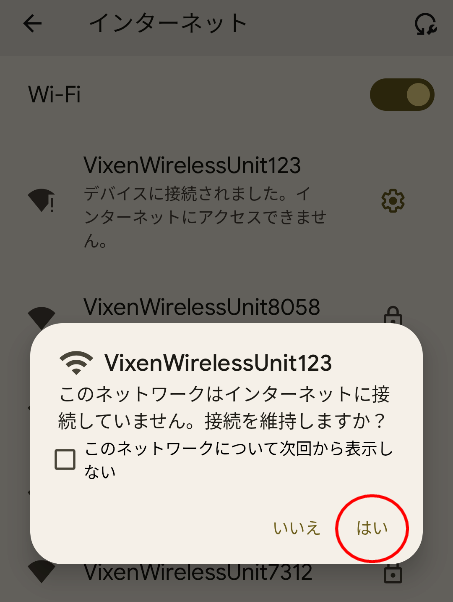
Be sure to select "YES".
*Since the Wireless Unit does not connect via the internet, this confirmation message is displayed.
(2) For both Android and iOS devices
Try using Airplane Mode
If there are other familiar Wi-Fi networks nearby, your device may try to connect to them, causing the connection to become unstable. By switching to Airplane Mode, you can disable all wireless communications on your smartphone at once.
Setup Procedure
Step 1) Turn ON [Airplane Mode] from your smartphone's [Settings].
Step 2) Turn ON [Wi-Fi] from your smartphone's [Settings].
*If a message like "This connection has no internet access. Keep connection?" appears when you turn on Wi-Fi in Step 2, be sure to select "YES".
(3) For both Android and iOS devices
Try changing the channel in the "STAR BOOK Wireless" app
Changing the Wi-Fi channel setting in the app may stabilize the connection.
Step 1
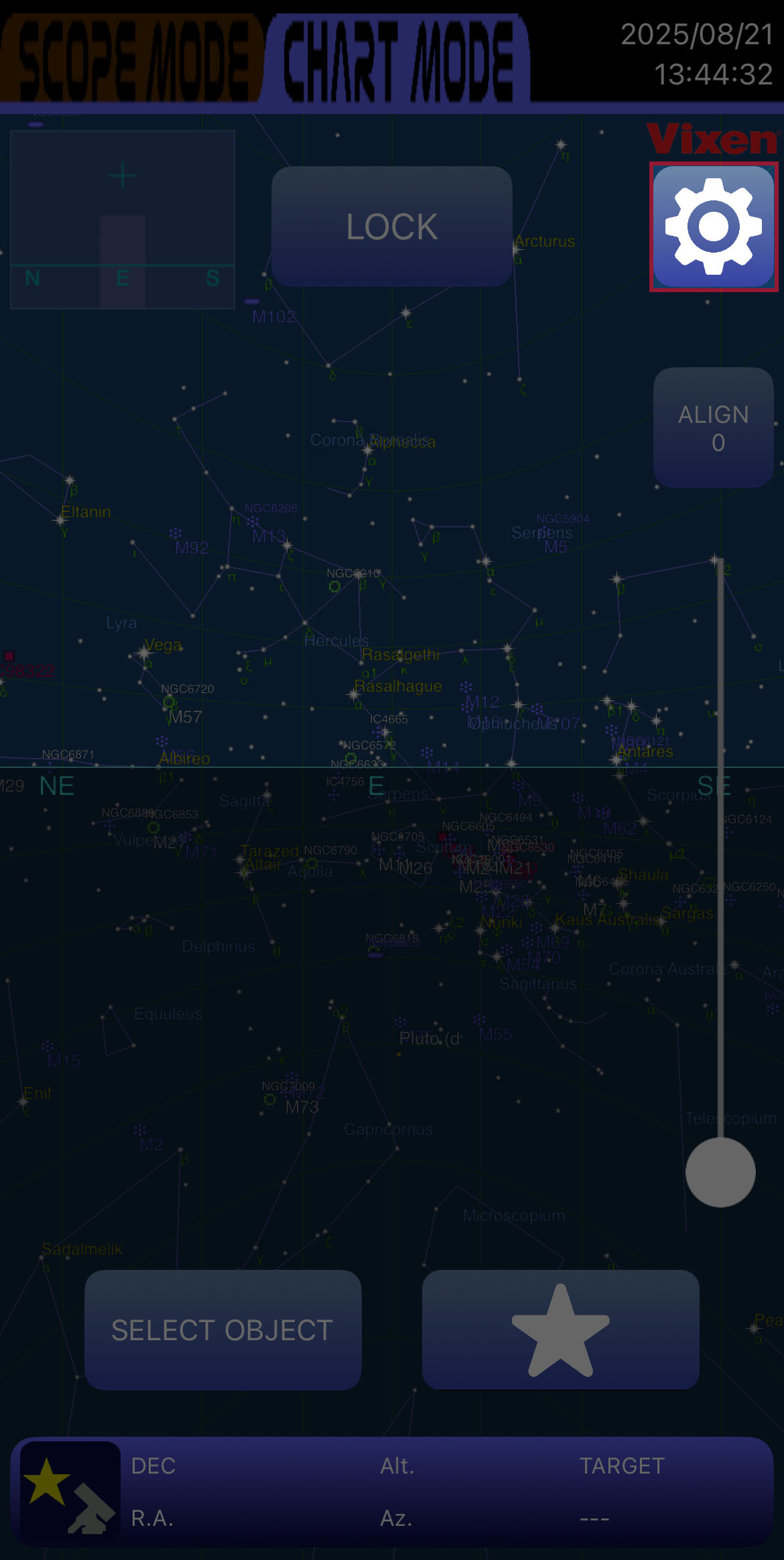
Tap [Settings] in the STAR BOOK Wireless app.
Step 2
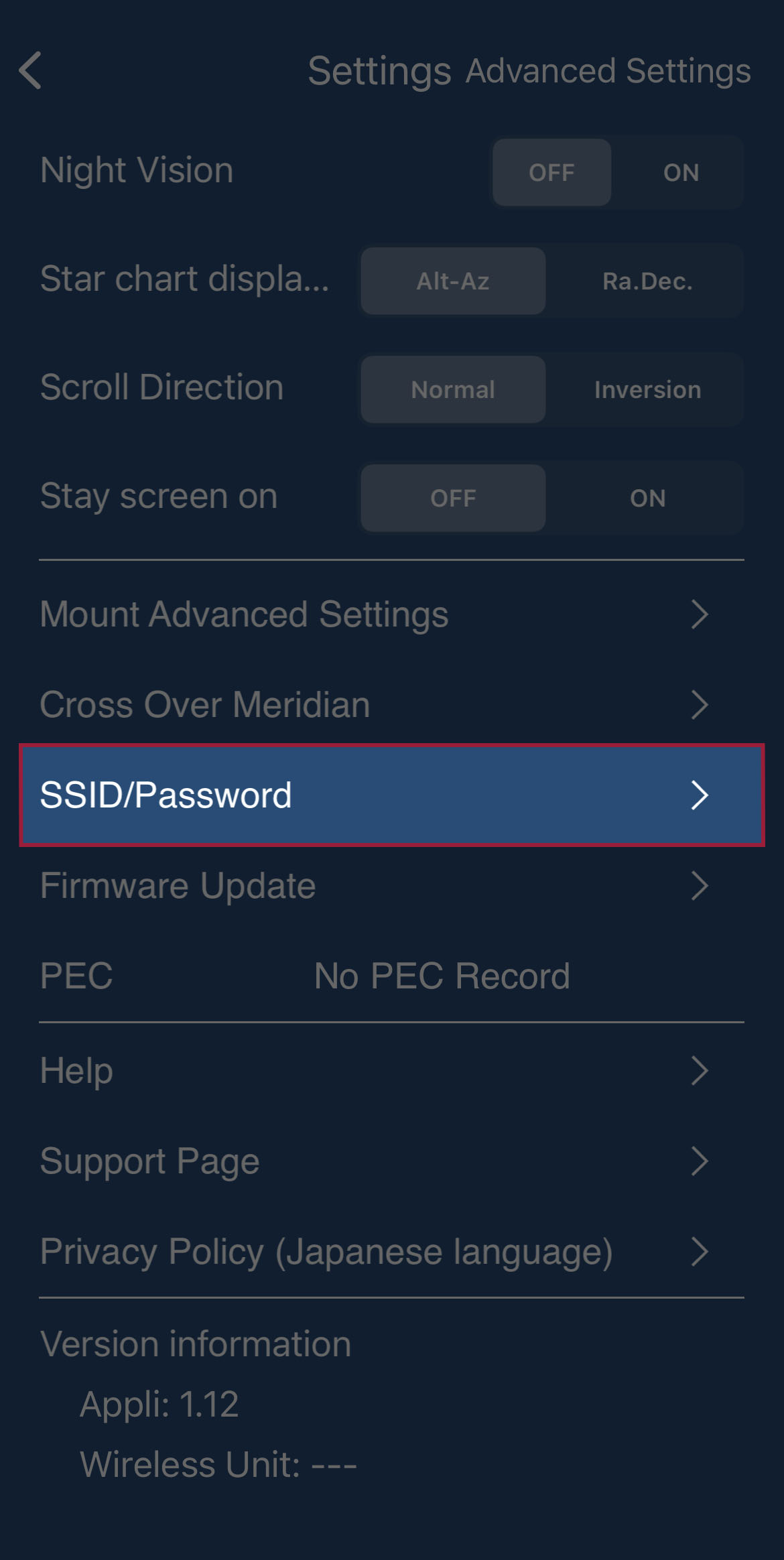
Select [Advanced Settings].
Step 3
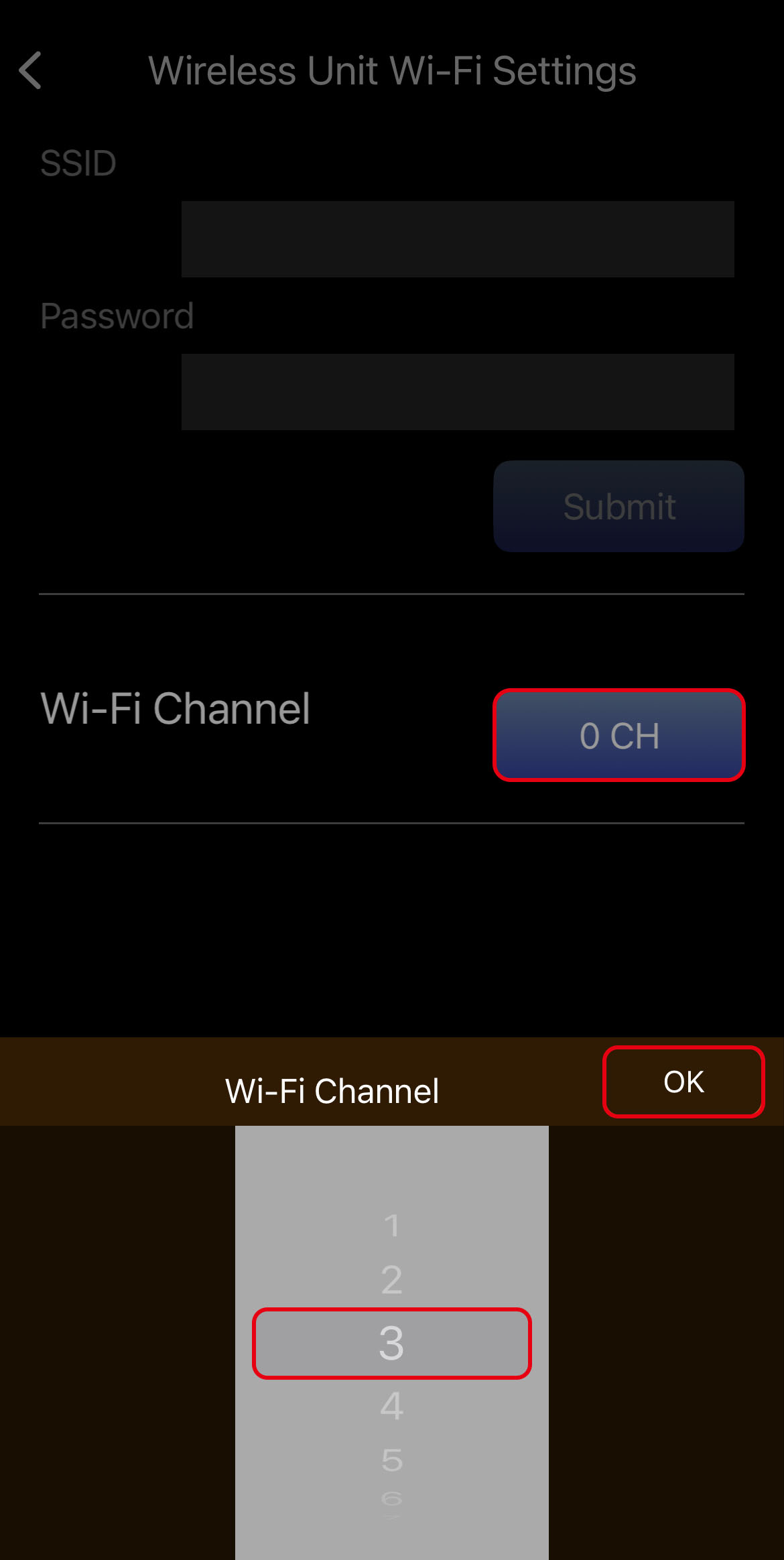
Select [SSID/Password].
The default setting is "5ch".
Please change it to a channel other than "5".
Step 4
Turn the equatorial mount's power off and on again.
*Restarting the power will apply the channel change to the Wireless Unit.
Important Note
When you restart the power, be sure to select "Use previous mount" to carry over the alignment data.
(4) Resetting the Wireless Unit
If the password or SSID settings are incorrect, you will not be able to establish a Wi-Fi connection.
If you have forgotten the password, please try resetting the unit.
Pressing the reset button on the Wireless Unit for one second or more will restore the password and SSID to their factory default settings.
For details, please refer to the Wireless Unit's instruction manual (pages 11 and 13).
Important Note
When you perform a factory reset, all settings will be initialized. You will need to reconfigure the following:
- Channel setting
- Re-acquire alignment (*The "Use previous mount" option will not be available)
- The password set in the STAR BOOK Wireless app
If these methods do not resolve the issue, or if you have any questions, please contact us for individual support.